Making one good AI clip is easy now. Making a full video, where the same person appears in every shot, the scenes connect and the visuals match what's being said, is a different job.
Most people jump straight from an idea to typing prompts. They get ten good-looking clips that don't belong together, and the video falls apart in the edit.
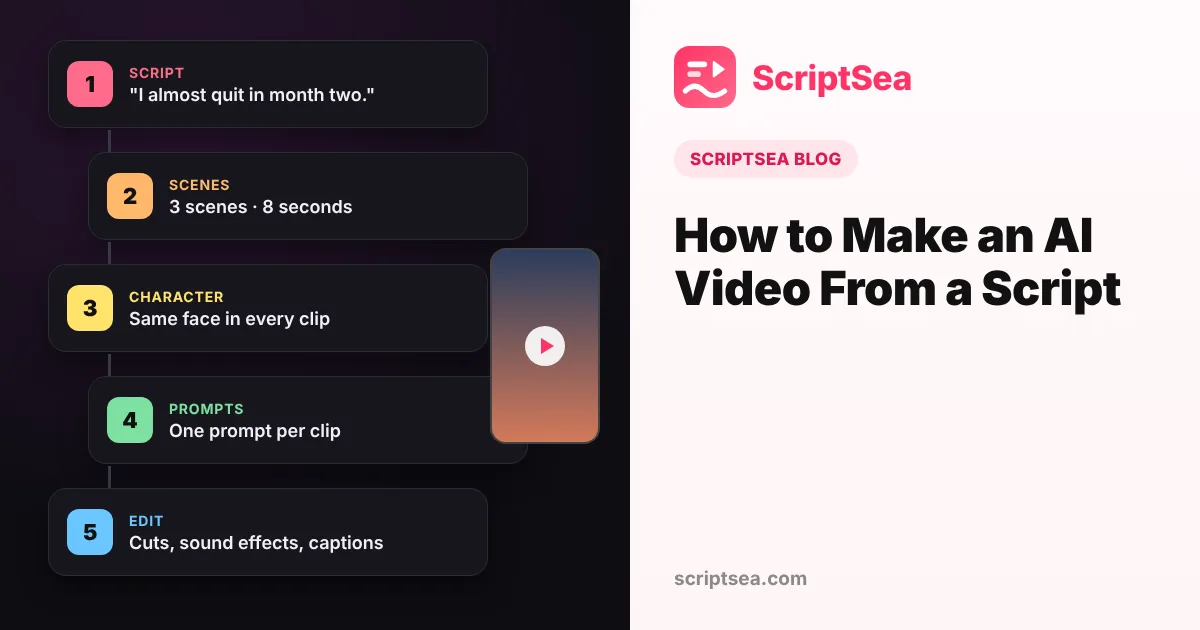
The fix is a simple workflow. Script first, then a scene list, then your character and scenes, then prompts, then the edit. Here's each step, in order, with the mistakes that cost the most time.
Step 1: Lock the script first
Everything starts with the words. If the script changes after you've generated clips, you'll be regenerating clips.
Write the full script before you make a single image. Read it out loud, time it, and cut until it fits your target length. For short videos, the rule of thumb is about 2.5 words per second, so a 30-second video is around 75 words. For long videos, most people speak at roughly 130 to 160 words a minute.
Decide one more thing now: is someone talking on camera, or is it a voiceover over visuals? That choice changes how you write every prompt later.
- Talking on camera: the dialogue goes inside the prompts, and the model makes the voice and lip movement.
- Voiceover: you record or generate the voice separately, and the clips are visuals with no one speaking to camera.
If you need help with the words themselves, we have guides for Shorts scripts and long YouTube scripts.
Step 2: Break the script into scenes
Go through the script line by line and decide what the viewer sees during each part. Each change of picture is a scene.
For each scene, write down:
| Scene | Script line | What we see | Length |
|---|---|---|---|
| 1 | "I almost quit in month two." | Close-up of her at her desk, tired, staring at the laptop | 3s |
| 2 | "Then a customer sent me this." | Phone screen with a message, her hand holding it | 3s |
| 3 | "It changed everything." | Wide shot, she leans back and smiles | 2s |
A new picture every 2 to 4 seconds keeps short videos moving. For long videos you can hold shots longer, but keep the screen changing.
Then group scenes into clips. AI video models make clips of a set length, so pack scenes that happen in the same place into one clip where you can. Fewer, longer clips usually keep a character's look and voice more consistent than lots of tiny ones.
Our free Script to AI Video Prompts tool does this split for you: paste the script, and it gives you scenes and clip prompts timed to the lines.
Step 3: Make your character and scene images
This is the step that decides whether your video looks like one video or a pile of clips.
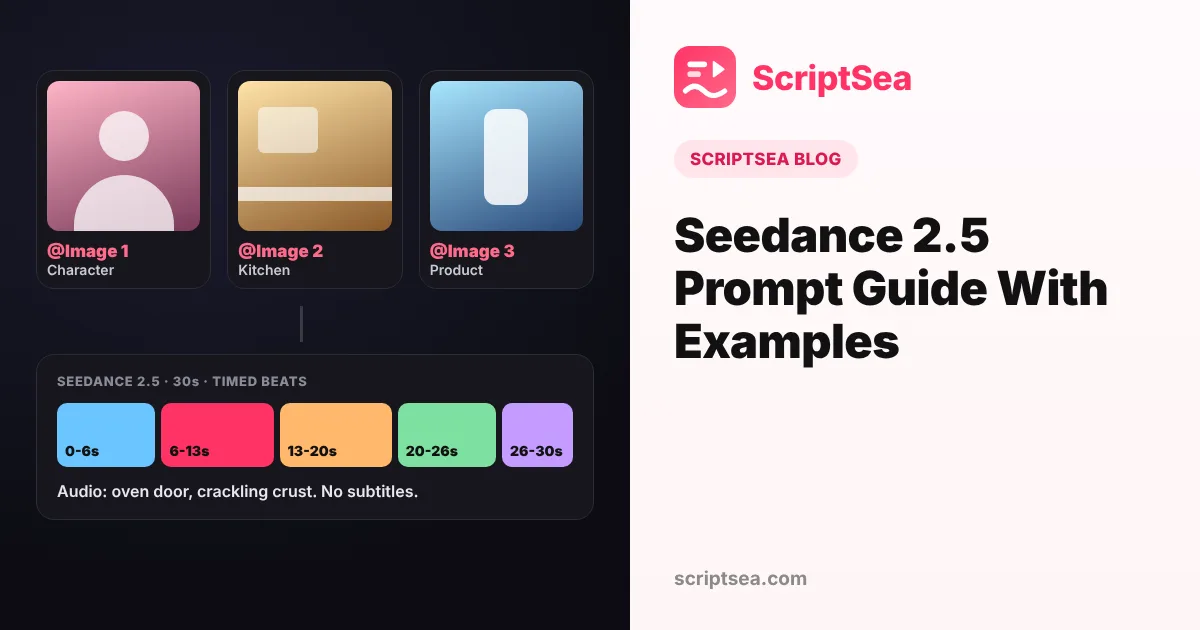
Make the character once, as a reference image. A clear, front-facing image in even light works best. Decide the outfit now and keep it the same for the whole video.
Make the main locations as empty images. A kitchen, an office, a street, with nobody in them. Then you can place the character into the same scene again and again, and the room stays the same.
Most AI video tools let you attach images to a prompt, or save them as reusable characters or elements. Use that. A reference image keeps a face far more consistent than any text description. We go deeper on this in why your AI characters keep changing faces.
Step 4: Write one prompt per clip
Now write the prompts. Each one should cover the same building blocks: style, subject, action, scene, camera and sound. If you've attached a character and scene image, let the images carry the look and keep the text focused on what happens.
A few rules that save a lot of failed generations:
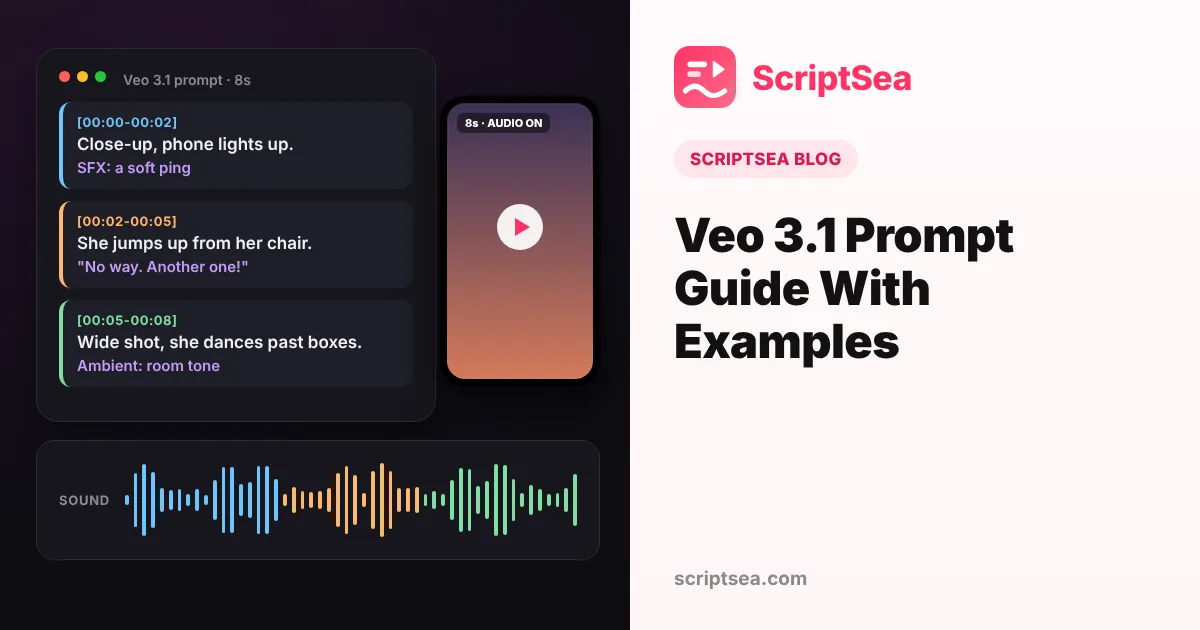
- Timed beats for longer clips. "0 to 3s: she picks up the phone. 3 to 6s: she reads the message and smiles."
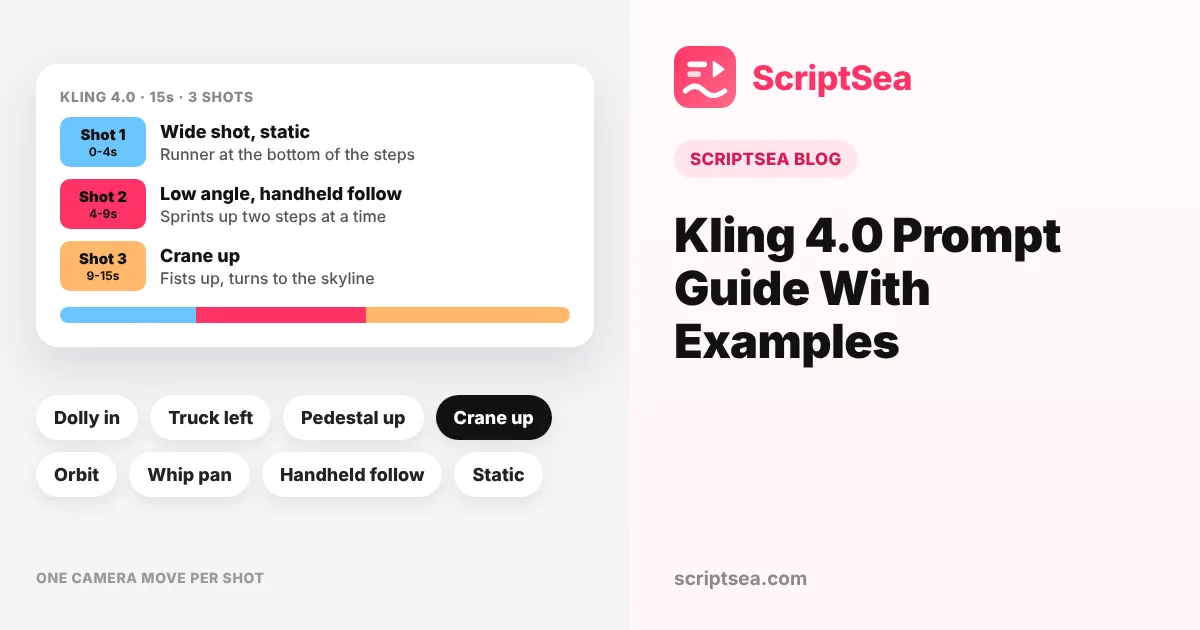
- One camera move per shot. Static, push-in or pan. Not all three.
- Exact dialogue in quotes, with who says it, if someone speaks.
- A separate audio line. Name the sounds you want, and say "no music" if you'll add your own later.
- Say "no on-screen text" or many models will add random captions and signs.
- Keep the style and lighting words identical across every clip in the video.
Our guide on how to write AI video prompts breaks down each part with examples.
Step 5: Generate, then check every clip
Generate each clip and watch it before you move on. Look for:
- Face and outfit changes from your reference
- Extra fingers, odd hands or objects that appear from nowhere
- Text or logos you didn't ask for
- Dead time at the end of the clip where nothing happens
- Wrong timing, like the action happening too fast or too late
Don't fix a bad clip by adding more words to the prompt. Usually the fix is the opposite: remove the part the model is confused by, simplify the action, or split one busy clip into two calm ones. Then regenerate.
Name every clip you keep with its scene number, like "scene03_phone_message". It saves a lot of time in the edit.
Step 6: Add the voice
If someone speaks on camera, the voice came with the clip. Check it sounds the same across clips. If a clip comes out with a different voice, regenerate that clip rather than trying to fix it in the edit.
If it's a voiceover video, record or generate the full voiceover in one go, so the tone stays even. Then split it across the clips in the edit. Recording line by line usually sounds choppy.
Step 7: Edit it together
Put the clips on a timeline in script order and lay the voice under them. Then:
- Trim every clip to the moment it's needed. Cut dead starts and ends.
- Match cuts to the words. The picture should change when the line changes.
- Add sound effects for actions: a door, a phone buzz, a whoosh on a transition. Small sounds make AI footage feel real.
- Add captions. Many people watch with the sound off.
- Use zooms and punch-ins in the edit, not in the prompt. You have more control, and it keeps the generated shots stable.
Watch the full video once at normal speed and once with the sound off. If anything is confusing without sound, add on-screen text.
Common mistakes in AI video workflows
- Prompting before the script is final. Every script change means new clips.
- No reference images. The character changes face from clip to clip.
- Describing the character differently in each prompt. Copy the same words every time, or better, rely on the image.
- Too much in one clip. Three actions and two camera moves in five seconds rarely works.
- Fixing everything with longer prompts. Simpler prompts usually fix more problems.
- Skipping sound design. Silent AI clips feel fake even when the picture is good.
Do the planning in one place
The slowest part of this workflow is steps 1, 2 and 4: writing the script, splitting it into scenes and writing a matching prompt for each one. ScriptSea does all three. You get a hook-first script, then scene-by-scene prompts for the AI video model you use, timed to the script.
Try ScriptSea free
ScriptSea turns an idea into a script and a full set of AI video prompts, scene by scene, for Seedance, Kling, Veo, Sora and more. Try ScriptSea free. You get 3 free scripts, no card needed.