Veo 3.1 can make a clip that looks and sounds real from a single paragraph. It can also give you a stiff, silent, slightly wrong video from a paragraph that seemed just as good.
The difference is almost always the prompt. Veo reads your words in a fairly predictable way, and Google has published clear advice on how to write for it. Once you know the pattern, you waste far fewer generations.
This guide covers the formula, the camera words, how to direct sound, timestamps for multi-shot clips and full example prompts you can copy and change.
What Veo 3.1 can do
Veo 3.1 is Google's video model, released in October 2025. You can use it in the Gemini app, in Flow, and through the Gemini API and Vertex AI. A few facts shape how you write for it:
- Clips are 4, 6 or 8 seconds long. Every prompt is written for one short clip.
- It makes sound with the video. Dialogue, sound effects and background noise all come from your prompt.
- It can use up to 3 reference images (Google calls these ingredients) to keep a character, object or style consistent.
- It can work from a first and last frame, creating the movement between two images you supply.
- It can extend a clip, building each new clip from the last second of the one before, so you can go past 8 seconds.
- It makes horizontal (16:9) or vertical (9:16) video. You pick this in the settings, not in the prompt.
Google has since released newer video models in Flow, such as Omni Flash. If that's what you use, its prompts work a bit differently, and our free Omni Flash Prompt Generator writes in its format.
The five-part Veo prompt formula
Google's own prompting guide for Veo 3.1 gives a simple structure:
Cinematography + Subject + Action + Context + Style and ambiance
| Part | What it covers | Example |
|---|---|---|
| Cinematography | Shot size, angle, camera move | Medium close-up, slow push-in |
| Subject | Who or what we're looking at | A barista in her 20s with a green apron |
| Action | What happens | She slides a latte across the counter and smiles |
| Context | Where and when | A small corner cafe, morning light through the window |
| Style and ambiance | The look and mood | Warm, natural colour, calm and friendly |
Put together, that becomes:
Medium close-up, slow push-in. A barista in her 20s with a green apron slides a latte across the counter and smiles at the customer. A small corner cafe, soft morning light through the front window. Warm, natural colour, calm and friendly mood.
That's already a usable prompt. Everything else in this guide is about making each part more precise.
Start with the camera. Leading with the shot tells Veo how to frame everything that follows. If you bury the camera at the end, it often gets ignored.
Camera words Veo understands
You don't need film school vocabulary, but a few precise words make a big difference. These come straight from the kinds of terms Google uses in its guide:
| Type | Words to use |
|---|---|
| Camera movement | Dolly in, dolly out, tracking shot, crane shot, aerial shot, slow pan, POV, static shot |
| Shot size and angle | Wide shot, medium shot, close-up, extreme close-up, low angle, high angle, two-shot, over the shoulder |
| Focus and lens feel | Shallow depth of field, deep focus, soft focus, wide-angle, macro |
Two rules keep the camera behaving:
- One camera move per shot. "Slow push-in" works. "Pan left, then crane up, then orbit" in 8 seconds usually turns into a wobbly mess.
- Describe the look, not the equipment. "Shallow depth of field, background softly blurred" works better than naming a camera or lens brand.
How to prompt sound in Veo
Sound is where Veo stands out, and where most prompts leave it to chance. If you don't describe the audio, Veo guesses. Direct it the same way you direct the picture.
Dialogue. Put the exact words in quotation marks, after the person who says them, with how they say it:
The barista says warmly, "Your usual. Extra hot."
Sound effects. Label them so they stand out from the description:
SFX: the milk steamer hisses, a cup clinks on the saucer.
Background noise. Describe the room:
Ambient noise: quiet cafe chatter, a coffee grinder in the background.
A few things that help with talking clips:
- Keep dialogue short. People speak about 2 to 3 words per second, so an 8-second clip fits roughly 15 to 20 words. Write more and Veo rushes the line or cuts it off.
- Say who speaks when there are two people, and keep their descriptions different ("the older man", "the woman in the red coat").
- Ask for no captions. Veo sometimes adds subtitles to dialogue. Adding "no subtitles" at the end of the prompt helps.
- Say "no dialogue" if nobody should talk. Otherwise people in the shot may start speaking.
Describe what you want, not what you don't
Google's guide makes a useful point: tell Veo what should be there, rather than listing what shouldn't.
Weak: "A desert, no buildings, no roads, no people."
Better: "An empty desert stretching to the horizon, untouched sand dunes and nothing else in sight."
Long "no" lists can backfire, because you've just put the unwanted things into the prompt. Save "no" for a few specific jobs, like "no subtitles" or "no dialogue".
Timestamps: several shots in one clip
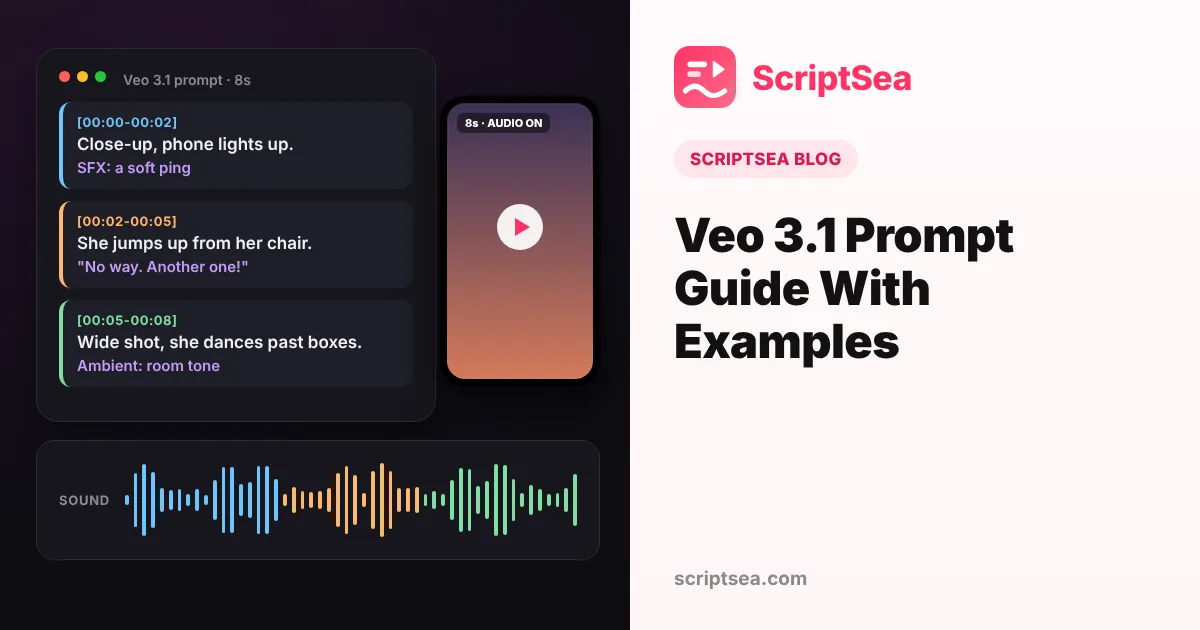
You can split one 8-second clip into separate shots by giving each part of the prompt a time range. Google shows this in its guide, and it's one of the most useful tricks for short-form video.
[00:00-00:02] Close-up of a phone screen lighting up with a new order notification. SFX: a soft ping.
[00:02-00:05] Medium shot, a woman in a small home studio jumps up from her chair, hands over her mouth. She says, "No way. Another one!"
[00:05-00:08] Wide shot, she dances across the room past shelves of packed boxes. Ambient noise: upbeat room tone, tape gun on the desk. No subtitles.
Tips for timestamped prompts:
- Keep the time ranges continuous, with no gaps, and end at the clip length you picked.
- Two to four shots is plenty for 8 seconds. More than that and each shot is too short to read.
- Repeat the key details of a person in each shot if you want them to look the same throughout.
Ingredients, first frame and extend: when to use each
Text alone works for one-off clips. For anything with a recurring person or product, use the image features:
- Ingredients (reference images): attach up to 3 images, like your character, your product and the location. Best for keeping the same face or packaging across many clips. Let the images carry the look, and keep the text focused on action and camera.
- First and last frame: give Veo a start image and an end image, and it creates the move between them. Great for reveals and transformations, like a closed box becoming an open one, or a camera that swings from the front of a person to behind them.
- Extend: continues a clip from its last second. Useful for a longer scene, but each extension can drift a little, so check faces and objects as you go.
For more on keeping a face the same across a whole video, see why your AI characters keep changing faces.
4 Veo prompt examples you can copy
1. UGC-style talking clip (8 seconds, vertical)
Medium close-up at eye level, static shot, like a phone propped on a shelf. A woman in her late 20s with curly hair and a grey hoodie sits on her bed holding a small skincare bottle up to the camera. She says excitedly, "I've used this every night for a month, and my skin's never been this calm." Natural daylight from a window on the left, a slightly messy bedroom behind her. Realistic, unpolished phone video look. Ambient noise: quiet room tone. No subtitles.
2. Product shot (6 seconds)
Extreme close-up, slow dolly in. Cold water pours over a matte black water bottle on a wet stone surface, droplets running down the sides. Dark background with a single soft light from above, reflections on the wet stone. Clean, premium commercial style. SFX: water splashing, a low whoosh as the camera moves in. No dialogue.
3. Cinematic establishing shot (8 seconds)
Aerial shot, slow forward movement. A small fishing village on a rocky coast at sunrise, colourful houses stacked up the hill, boats rocking in the harbour. Mist over the water, golden light hitting the rooftops. Calm, peaceful documentary style. Ambient noise: waves, distant seagulls, a boat engine starting. No dialogue.
4. Two-person dialogue (8 seconds)
Over-the-shoulder shot from behind a young man in a blue shirt, looking at an older woman across a kitchen table. She raises an eyebrow and says, "You said you'd be home by nine." He shrugs and replies, "The train broke down. Again." Warm kitchen light at night, mugs on the table. Natural, realistic drama style. Ambient noise: a clock ticking, the fridge humming. No subtitles.
Notice the pattern in all four: camera first, then a specific person or object, one clear action, the place and light, the style, and a separate line for sound.
Common Veo prompt mistakes
- No sound direction. Veo fills the silence with whatever it guesses, sometimes music or random speech.
- Too much dialogue for the clip length, so the line gets rushed or cut.
- Several camera moves in one shot. Pick one.
- Vague subjects. "A man" gives you a random man every time. Add age, clothing and one distinctive detail.
- Writing the aspect ratio or camera brand in the prompt. Set the format in the settings and describe the look in words.
- Re-describing a face that's in a reference image. If you attached an ingredient, let it do the work.
If your prompt has the right idea but feels thin, our free Video Prompt Enhancer can add the camera, lighting and sound details for you. And for the bigger picture on prompt writing across all models, see how to write AI video prompts.
Write Veo prompts in seconds
Our free Veo Prompt Generator turns a simple idea into a Veo 3.1 prompt in the format above: camera first, dialogue in quotes, labelled sound effects and timestamps when you want more than one shot. If you use other models too, we have guides for Kling prompts and Seedance prompts.
Try ScriptSea free
ScriptSea turns your idea into a full script and scene-by-scene prompts for Veo, Kling, Seedance, Sora and more, timed to your script. Try ScriptSea free. You get 3 free scripts, no card needed.